
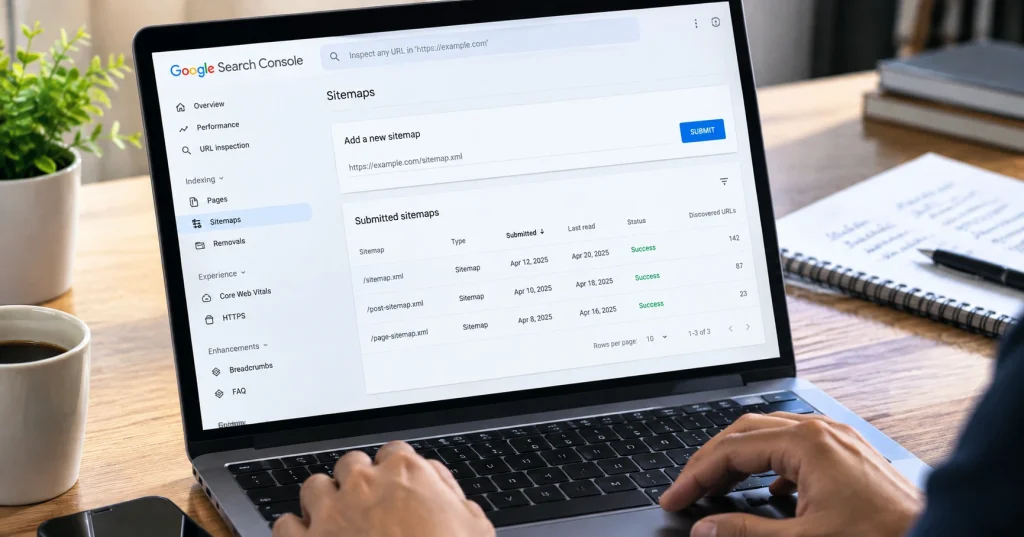
Google won’t find every page on your site by itself. Sounds obvious, but a lot of people assume it will. If you want to give Google a hand, the easiest way is to submit a sitemap to Google Search Console, and the whole thing takes about five minutes.
A sitemap is basically the table of contents for your website. It’s a list of your pages, handed to Google in one go, so Google doesn’t have to guess what’s there. I’ll take you through it slowly, even if you’ve never touched Search Console. Errors and common questions are covered further down.
What Is a Sitemap and Why Does It Matter
Most sitemaps are a file called sitemap.xml, sitting on your site and listing the pages you want search engines to see. Posts, products, categories, images, all of it can go in. XML is the usual format, though Google also accepts RSS, Atom and plain text sitemaps, so you can use whatever your platform gives you.
Here’s why it helps. Google sends out crawlers that follow links from one page to the next. If a page has no links pointing to it, the crawler may never land there. New sites run into this constantly, since almost nobody links to them yet. Big sites have the same trouble because there’s simply too much to cover. A sitemap sidesteps the problem by naming every page up front.
It works for a hobby blog, a shop, or a business tool like a lead management system. Pages that Google can’t find won’t show up in search, full stop. A sitemap won’t push you up the rankings, and I’d be lying if I said it would. What it does is remove one reason your pages might stay invisible.
Where to Find Your Sitemap URL
You can’t submit it until you know where it lives, and that changes from platform to platform.
- WordPress with Yoast or Rank Math: yourdomain.com/sitemap_index.xml
- WordPress built in feature: yourdomain.com/wp sitemap.xml
- Shopify: yourdomain.com/sitemap.xml
- Wix: yourdomain.com/sitemap.xml
- Squarespace: yourdomain.com/sitemap.xml
- Custom built website: check robots.txt or ask your developer
Unsure which one you have? Add /sitemap.xml to the end of your domain and load it in your browser. A page of links means you’re in the right place. A blank or error page means you should look inside robots.txt, where the sitemap address is often listed near the top.
Step by Step: Submitting Your Sitemap to Google Search Console
The process hasn’t changed much, so if you used Search Console a few years back, most of this will look familiar.
Step 1: Log in to Google Search Console
Sign in with the Google account tied to your website. If you have several accounts, it’s usually the one you used when you first set the site up.
Step 2: Verify your website (if not done already)
Google won’t accept a sitemap for a site you haven’t proven you own. You can verify with a DNS record, an HTML file, or a meta tag in your homepage. DNS is the one I’d pick, because it covers the whole domain and any subdomains too.
Step 3: Select the correct property
Got more than one site in your account? Check the dropdown at the top left. Submitting to the wrong property is an easy mistake and a annoying one to undo.
Step 4: Open the Sitemaps section
Find Indexing in the left sidebar, then click Sitemaps. Everything about your sitemaps is tracked on this page.
Step 5: Enter your sitemap URL
There’s a box labeled Add a new sitemap. Your domain is already in there, so you only type the ending, like sitemap.xml or sitemap_index.xml.
Step 6: Click Submit
Press the button. Google puts your sitemap in line to be processed.
Step 7: Check the status
Wait a bit, then refresh. You want to see Success and a count of discovered URLs. If something failed, the message usually points at the cause.
Common Errors and How to Fix Them
Not every submission goes through cleanly. These are the ones I’d expect you to meet first.
Couldn’t fetch. Usually the URL is mistyped or blocked somewhere. Recheck the address, then open it in an incognito window to see what a stranger would see.
Sitemap is HTML. You’ve pointed Google at a normal webpage, not the XML file. The address should end in .xml.
URL blocked by robots.txt. Your robots.txt is turning Google away, and that includes the sitemap. Edit the file so the sitemap can be crawled.
General HTTP error. That’s typically your server having a bad moment, or some downtime. Give it a while and submit again. If it keeps happening, talk to your host.
Nearly all of these turn out to be small fixes once you actually look at them.
How Long Does It Take Google to Process a Sitemap
Don’t expect instant results. Google needs anywhere from a few hours to a few days to crawl and process what’s in your sitemap, and a site with thousands of pages can take longer than that. The Sitemaps report lets you watch it happen, showing pages discovered against pages indexed.
Got one page you can’t wait on, like a new post or an urgent update? Open the URL Inspection tool in Search Console and request indexing for just that page. Google’s guide to asking Google to recrawl your URLs covers how it works and the daily limits you’ll hit if you overdo it.
A Note on Recent Changes
A couple of years ago Google quietly retired the sitemap ping method, which some sites used to notify it about updates. Google explained the change on its Search Central blog. The short version: unauthenticated pings weren’t very useful and mostly turned out to be spam. Send one now and you get a 404 error back. Submitting through Google Search Console is the most reliable official route today, with a sitemap line in robots.txt as a backup.
Nobody should miss the old method much. Search Console gives you error reports and indexing history, and pinging never showed you anything like that. If you want the technical side of sitemap structure, Google’s own developer documentation is a solid place to start. Guides like this one from Ahrefs go further into indexing strategy if you’re curious.
Final Thoughts
Submitting a sitemap is easy to forget because it’s so small. A few minutes of work, and Google can find your content faster. New site or old, take a look at your sitemap status in Search Console now and then.
You don’t need a developer for any of this. A first time blogger can do it. So can someone running a full business platform.
FAQs
1. Do I need to submit my sitemap every time I add a new page?
No. Google rechecks your sitemap by itself and picks up new pages as it goes.
2. Can I submit more than one sitemap?
Yes. Search Console accepts several sitemaps for one property, which is handy for large websites with separate sections.
3. What happens if my sitemap has errors?
Google still tries to process the valid URLs. The broken ones get flagged in the report so you can fix them.
4. Is submitting a sitemap enough to rank on Google?
No. It only helps Google discover and index your pages. Ranking comes down to content quality, relevance, and plenty of other things a sitemap can’t touch.